
Accounts & Deposit > Positive Pay System > Positive Pay System

Positive Pay System

Apply now

At Union Bank of India, we deeply care about your digital banking safety and are duty-bound to ensure a safe and secure banking experience with every digital transaction.

Staying true to this promise, we’ve incorporated the Positive Pay System in our cheque verification system to add an extra layer of security to your cheque transactions.

Introduced by the Reserve Bank of India, Positive Pay System is a process of deterring banking fraud by manipulating cheques at any point of transaction. It's done by the depositor adding the cheque data before putting it into circulation. Bank will then pass the cheque in CTS clearing without contacting the customers. In case of any mismatch, the bank can reject the cheque or take suitable action to prevent wrong payment or fraud.

Click on the links below for more details on the Positive Pay System.
A. Positive Pay :

  • Positive Pay is a process of validating/confirming the key details of cheques to deter cheque fraud (applicable on high-value cheques amounting to Rs 50000/- and above). Please refer to the RBI’s circular number RBI/2020- 1/41/DPSS.CO.RPPD.No.309/04.07.2005/2020-21, issued on September 25th, 2020
  • Customers are requested to submit in advance the key details of cheques issued to the beneficiaries so that the bank can pass cheques in CTS clearing without contacting the customers. In case of any mismatch, the bank can reject the cheque or take suitable action to prevent wrong payment or fraud.
  • The Positive Pay facility in our bank is available free of cost.
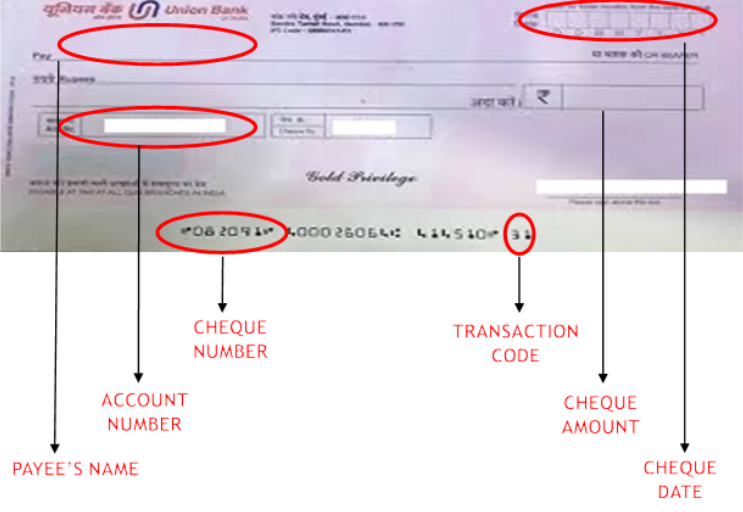
  • Key details of the cheque to be submitted in Positive Pay by the customer are as below:
    image1-key-feature

B. General instructions :

  • The positive pay is currently applicable to cheque value of Rs. 50000/- and above.
  • W.e.f 01.01.2023, submitting positive pay details in case cheque value 200000/- (Rupees Two Lakhs) and above will be mandatory.
  • There is no option for modify/delete confirmation in any mode as modification cannot be done once the data is submitted to NPCI.
  • Cheque will be honoured if provided details matched with the actual cheque presented in the clearing and if otherwise is in order viz. sufficient funds, Signature matching etc.
  • Confirmations through all/any mode submitted/verified up to 06.00 PM (daily) will only be forwarded to NPCI for the next clearing session. Afterwards, all the confirmations will be processed for subsequent clearing sessions.
  • Only cheques with status as unused/already confirmed/passed will be validated.
  • Customers shall submit Positive Pay confirmations through any one mode for the cheque.
  • Stale checks (3 months older from the date of confirmation) will not be accepted. Any future date of the cheque will be accepted.

C. Channels of Positive Pay :

  • Customers can avail of this facility through any of the following channels.
    • Internet Banking
    • Branch Visit
    • SMS Banking
    • Mobile Banking
    • Corporate Website
    • WhatsApp Banking (UVCONN)

i. Internet Banking:

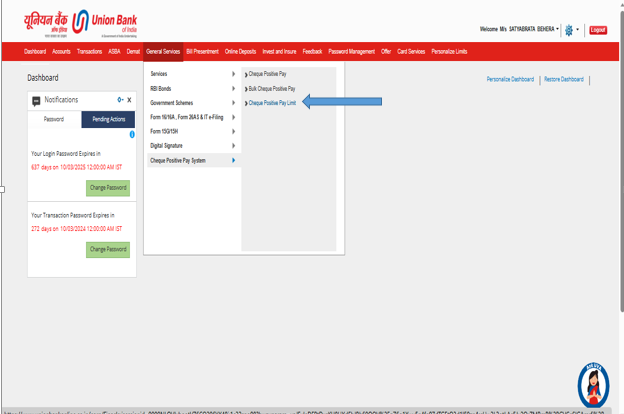
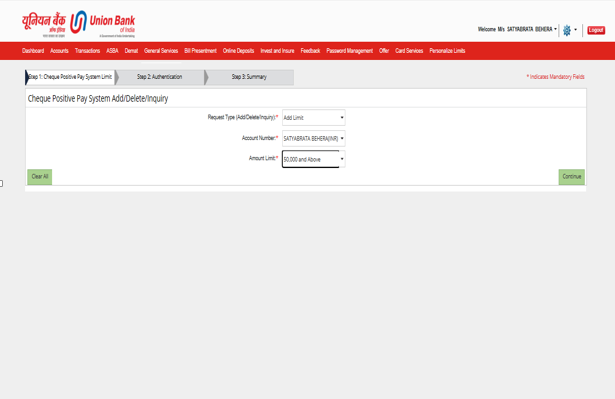
  • The option is provided in Internet banking for customers to register Positive Pay Consent under “General Services>Cheque Positive Pay System>Cheque Positive Pay Limit”. Once a customer registers consent for Positive Pay, it is mandatory to submit the cheque details for positive pay whenever the customer issues cheques. Registering consent is a one-time activity.
    image2-key-feature
    image3-key-feature
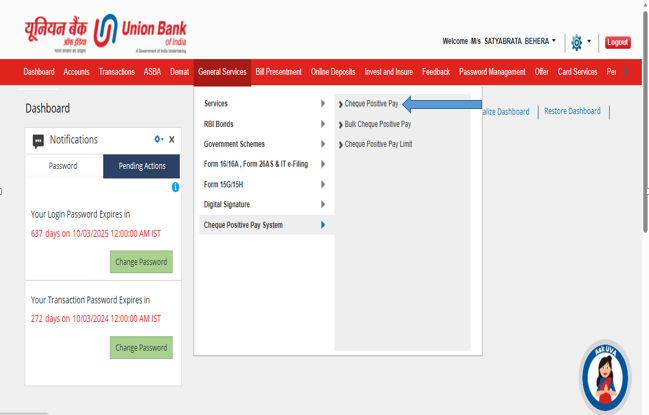
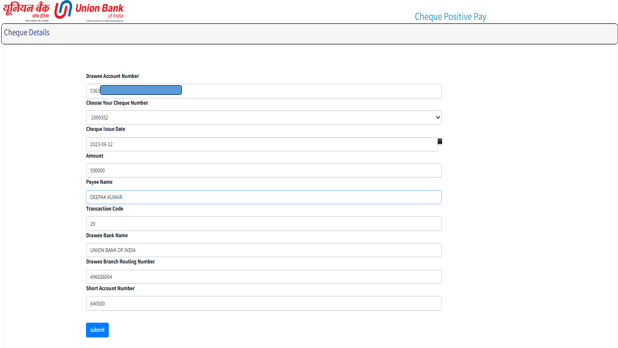
  • Customers can submit the cheque details using “General Services>Cheque Positive Pay System>Cheque Positive Pay”.
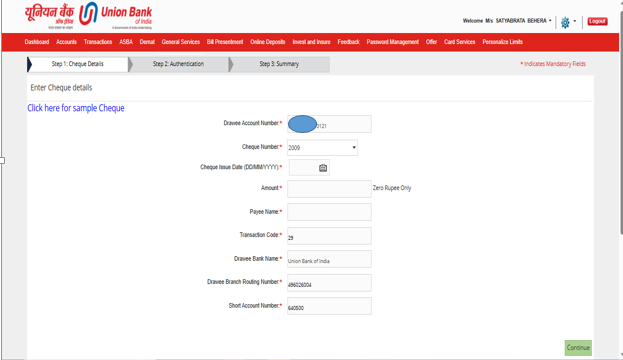
  • Users can select Account Number and Cheque Number from the drop-down menu.
  • Users need to enter only Cheque Amount, Payee Name, and Cheque Date.
  • Transaction Code, SAN Number and MICR will be auto populated on the screen.
    image4-key-feature
    image5-key-feature
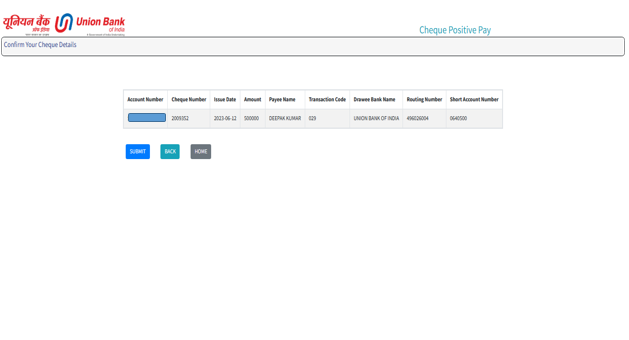
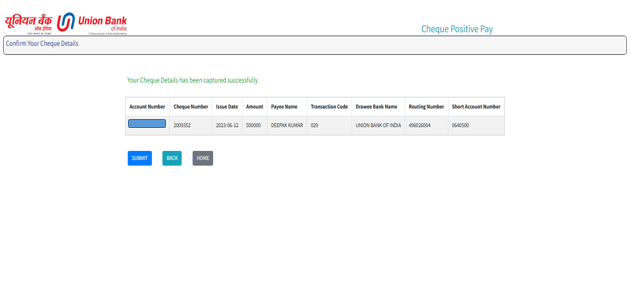
  • After submission of the above information, click on ‘Continue’ and the system will take on the Authentication window where OTP submitted on registered mobile to be entered and then click on Submit.

    Positive Pay - Bulk Upload Option in Internet Banking

    File format 

    • File format can either be .txt or .csv 
    • File format for .csv
      Cheque no Date Amount Beneficiary Name
      12131517 29/06/2022 12.00 PAYEE BENIF1
      12131518 29/11/2022 12.01 PAYEE BENIF2
      12131519 29/05/2023 12.02 PAYEE BENIF3
      121315041 29/11/2022 12.03 PAYEE BENIF4
      • Prepare the file in xls and then save it as .csv and upload it.

    OR

    • File format for .txt
      Cheque no Date Amount Beneficiary Name
      12131517 29/06/2022 12.00 PAYEE BENIF1
      12131518 29/11/2022 12.01 PAYEE BENIF2
      12131519 29/05/2023 12.02 PAYEE BENIF3
      121315041 29/11/2022 12.03 PAYEE BENIF4
    • File can be directly prepared in notepad and save it is as .txt, for example abc.txt

      OR

    • Prepare file in xls then save it as tab delimited. Open the file in notepad and replace the tab with “|”.

      OR

    • Prepare file in xls then save it as .csv. Open the csv file in notepad and then replace the “,” (comma) with "|"
    • User can use any of the option as described in i, ii, iii, iv. However, method (i) is very simple.

    Please follow the following procedure for uploading the file in internet banking

    • Log in to Internet Banking application
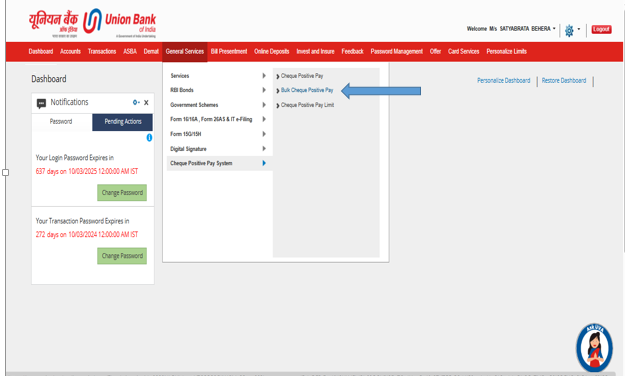
    • Select General Service->Cheque Positive Pay System->Bulk Cheque Positive Pay
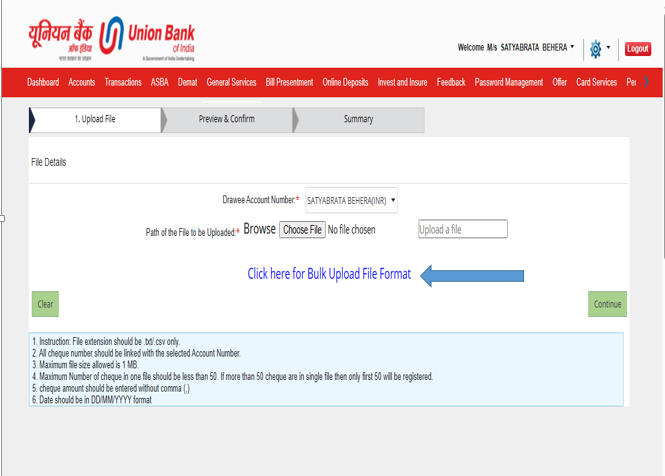
    • Select Drawee Account number whose cheque details to be uploaded. Cheque issued to account other than selected drawee account number will be rejected if uploaded.
    image6-key-feature
    image7-key-feature

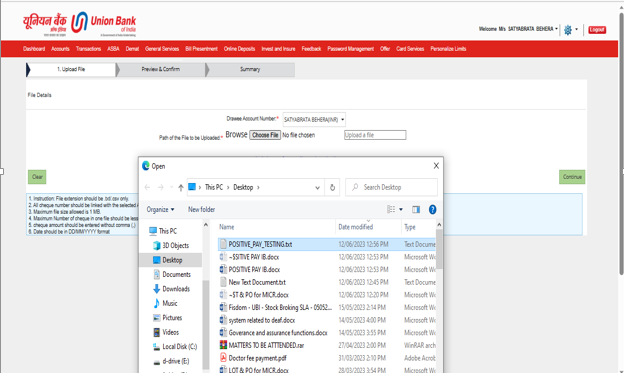
    Browse the upload file from the local folder and click on continue

    image8-key-feature

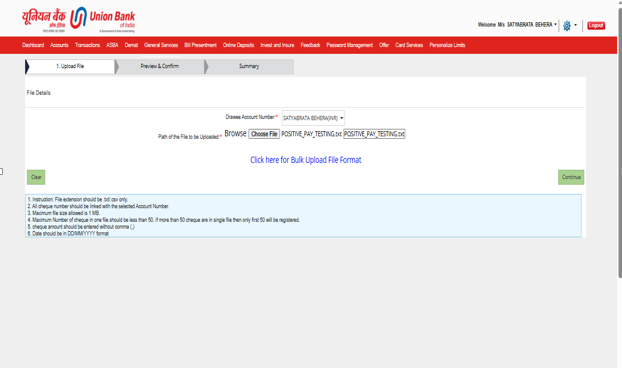
    Ensure the name of the selected file is displayed.

    image9-key-feature

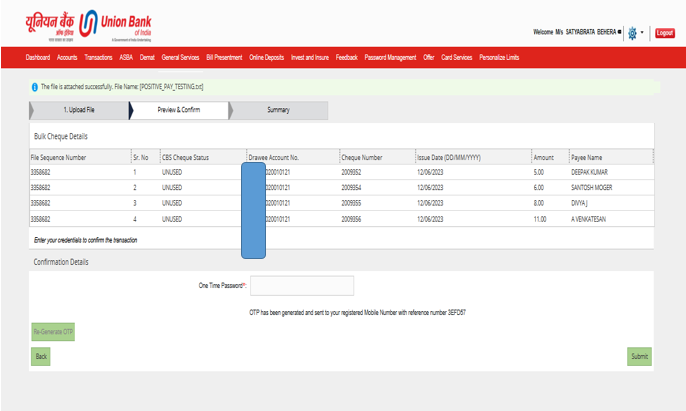
    Following summary page will appear. Error/success validation of cheque can be view in CBS Cheque Status column as under

    image10-key-feature

    Enter OTP received in registered mobile. Then click submit

ii. Positive Pay - Branch Visit :

  • Customers can also visit the branch and submit their consent for Positive Pay (one-time activity) and submit cheque details as and when they issue a cheque to the beneficiary. The Positive Pay format is made available with the branch.

iii. SMS Banking :

  • Customer can submit positive pay details to 9223008486 in the format below:
  • UCPPS <Account Number> <Cheque Number> <Cheque Date in DD/MM/YYYY> <Amount in Rupees and Paise up to 2 decimal> <MICR Code> <SAN Code> <Transaction Code> <Payee name>

iv. Positive Pay in Mobile Banking

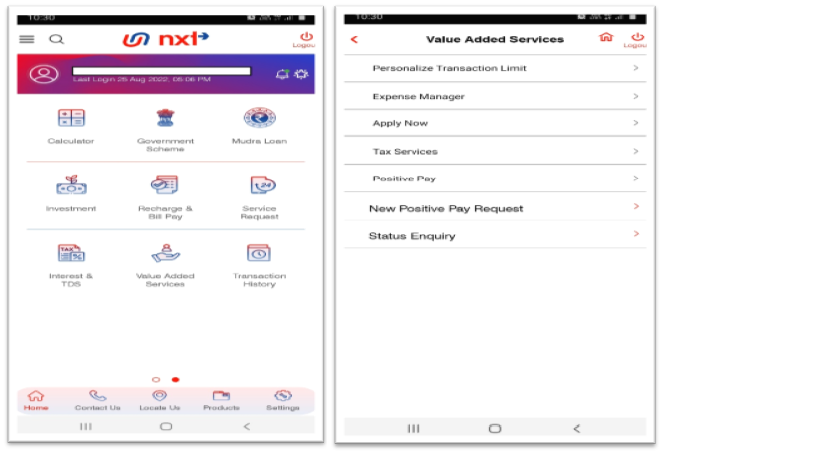
  • Positve Pay utility is available in “Value Added Services”.
  • Positive Pay Cheque Details Submit Request:
  • Home Page -> Value Added Services -> New Positve Pay requested
    image13-key-feature
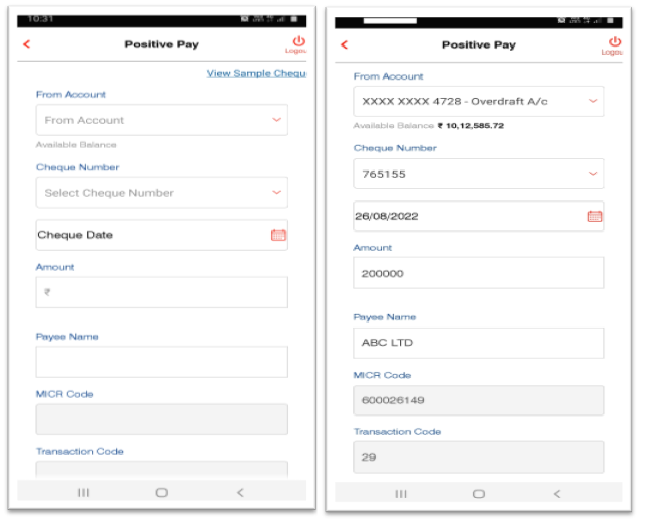
  • User can select A/c number and Cheque Number from drop down and cheque date, Amount and Payee Name to be entered. MICR, SAN number, Transaction Code is auto populated.
    image14-key-feature
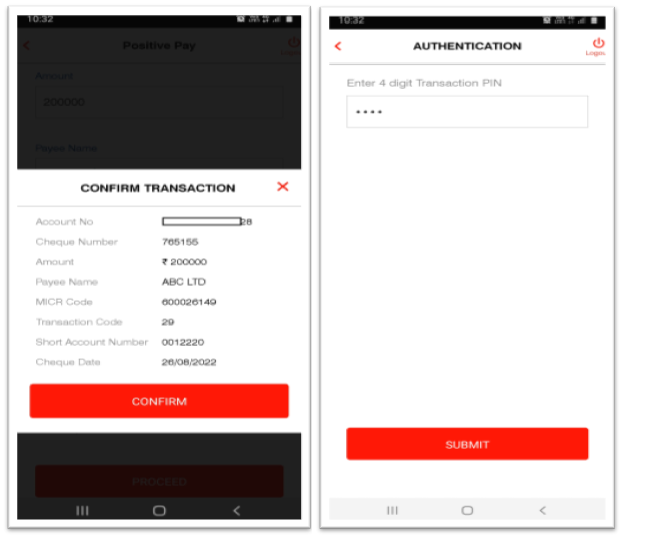
  • After submitting the details user can re-check and confirm. OTP will be sent to user’s registered mobile number and same has to be entered for authentication.
    image15-key-feature
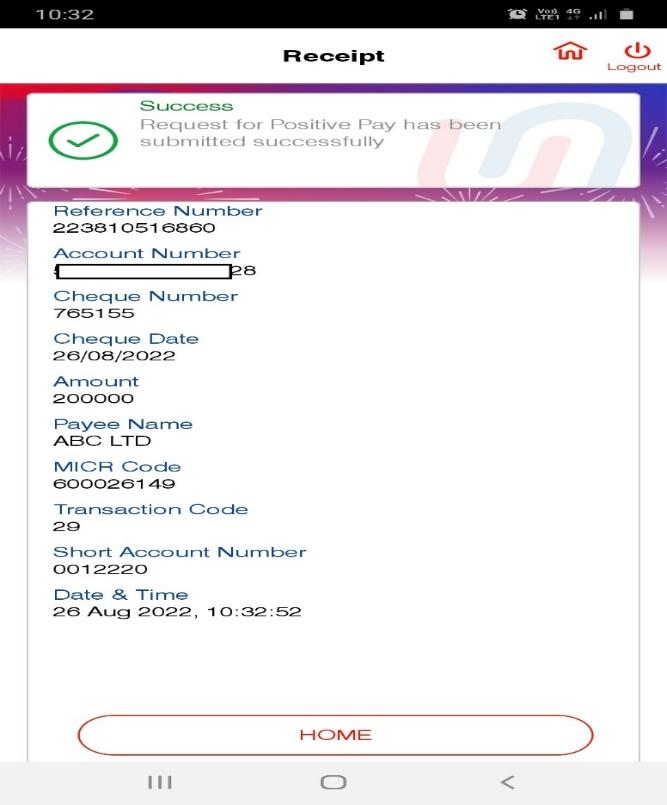
  • After OTP authentication Positive Pay details will be successfully submitted to Bank.
    image16-key-feature
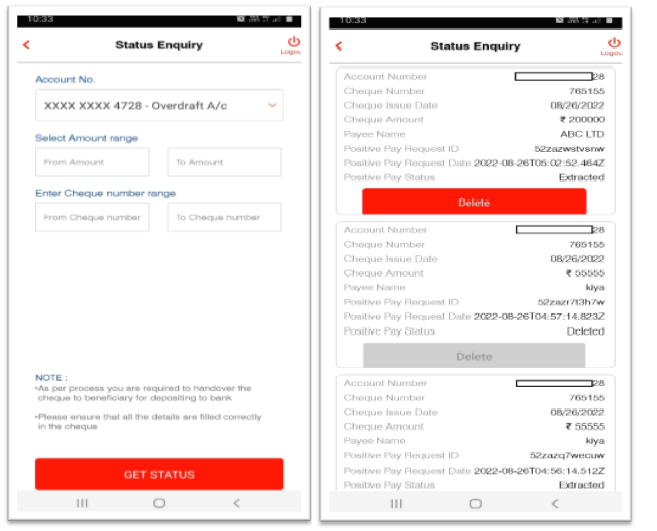
  • Enquiry Option:
    • User can use the Status Enquiry option under “Home Page -> Value Added Services -> Status Enquiry.
      image17-key-feature

v. Positive Pay in Bank’s Website :

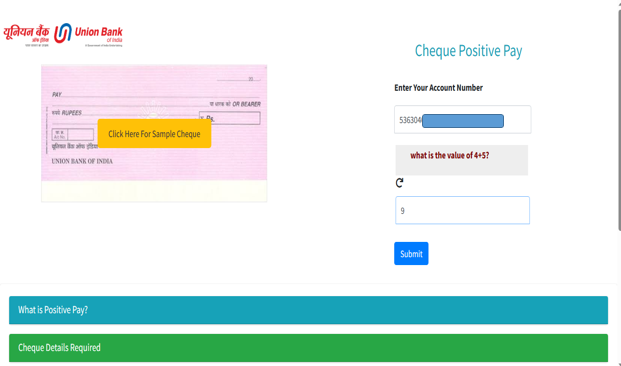
  • Option is provided in Corporate Website to submit positive pay cheque details under “https://myportal.unionbankofindia.co.in/PositivePay/”.
  • Customer must have registered mobile number to receive the OTP.
  • Customer should enter Account Number and CAPTCHA and click “Submit”.
    image18-key-feature
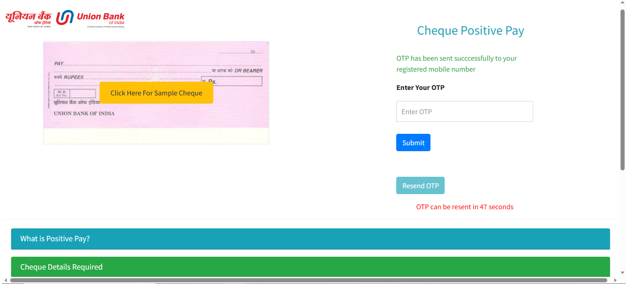
  • Customer will receive OTP in their Mobile. In the next page customer should enter OTP and Submit
    image19-key-feature
  • After OTP authentication, following page will appear. Customer can select cheque number from drop down and enter Cheque Date, Amount, Payee name. Other details are auto populated which can be cross checked before submitting.
    image20-key-feature
  • After submitting the cheque details, system will ask for verify the entered details and submit.
    image21-key-feature
    image22-key-feature

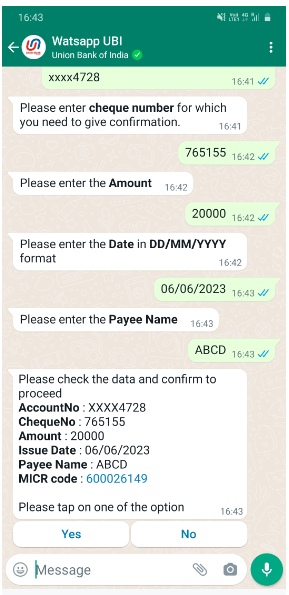
vi. Positive Pay System in WhatsApp Banking :

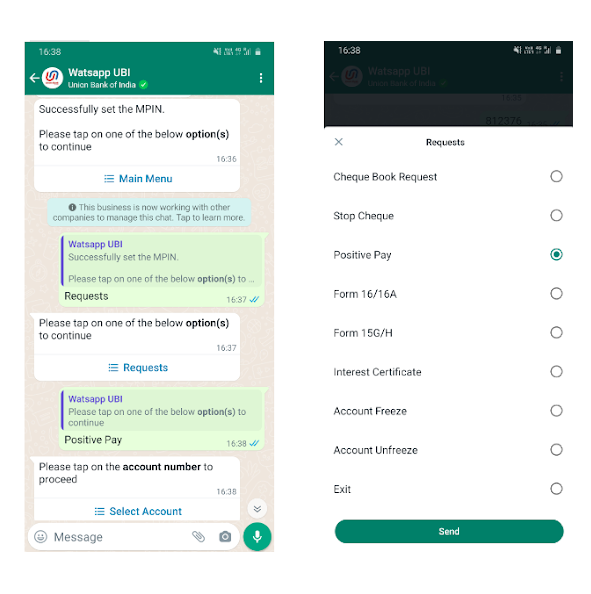
  • Login to WhatsApp banking using MPIN
  • In main menu, select “Request” ->” “Positive Pay”
    image11-key-feature
  • App will ask to Select Account number
  • After selecting desired A/c number, enter Cheque Number, Amount and Cheque Date
  • Click on Yes after verifying the summary details.
    image12-key-feature